| Version 7 (modified by , 9 months ago) ( diff ) |
|---|
Register for MFA
Registering does not have any immediate effect, except that the options are stored.
- Go to https://aka.ms/mfasetup
- Log in with your email login

You should only see “Password” listed as a login method
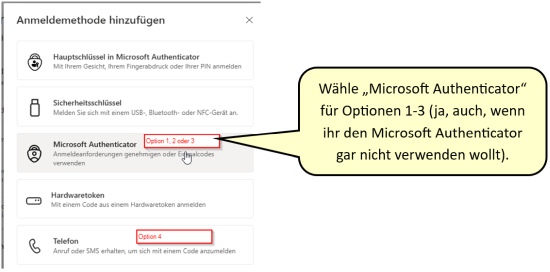
- Click “Add sign-in method”
Option 1 “Microsoft Authenticator”
- Start with the general steps above and select “Microsoft Authenticator.”
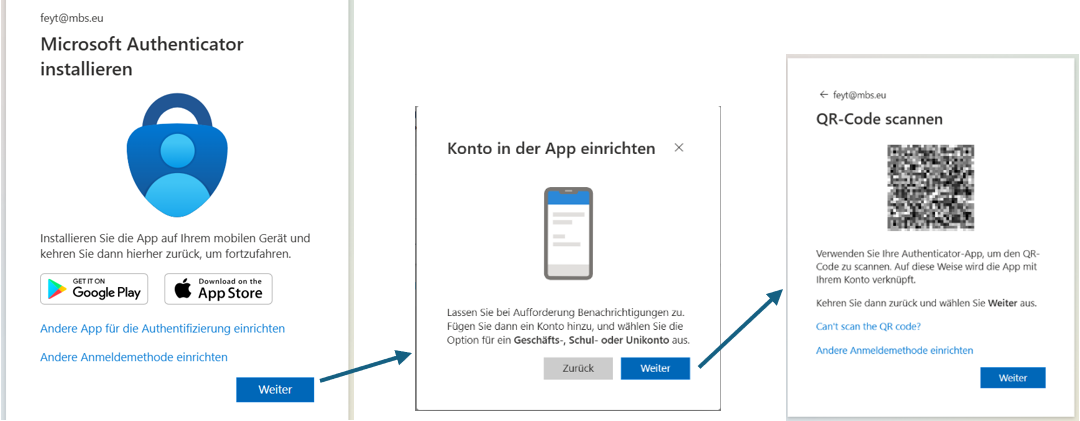
- If you haven't already done so, install Microsoft Authenticator from the respective store.
- Add an account to Authenticator.

- In the app, select Add (icon at the bottom right) and scan the QR code
- Your smartphone may ask for additional permissions to use the camera or push notifications. These must be approved.
- Once you have scanned the QR code, click “Next.”

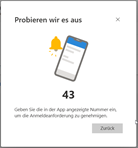
- A pop-up will appear in the app asking you if you just tried to log in and what number is displayed. Enter the number displayed and tap “Yes.”
- Close the confirmation page.
#mfa_option2_en #mfa_option3_en
Options 2 and 3 “Other app on smartphone or laptop”
- If you haven't already done so, install any TOTP-enabled authenticator. For example:
- KeePassXC (pre-installed on all MBS laptops; for Windows, macOS, and Linux, Handout available)
- Google Authenticator (iPhone and Android)
- Ente Auth 2FA (open-source project; all platforms)
- macOS Passwords (standard app on macOS)
- Start with the general steps above and select “Microsoft Authenticator” (yes, that's right, Microsoft Authenticator).
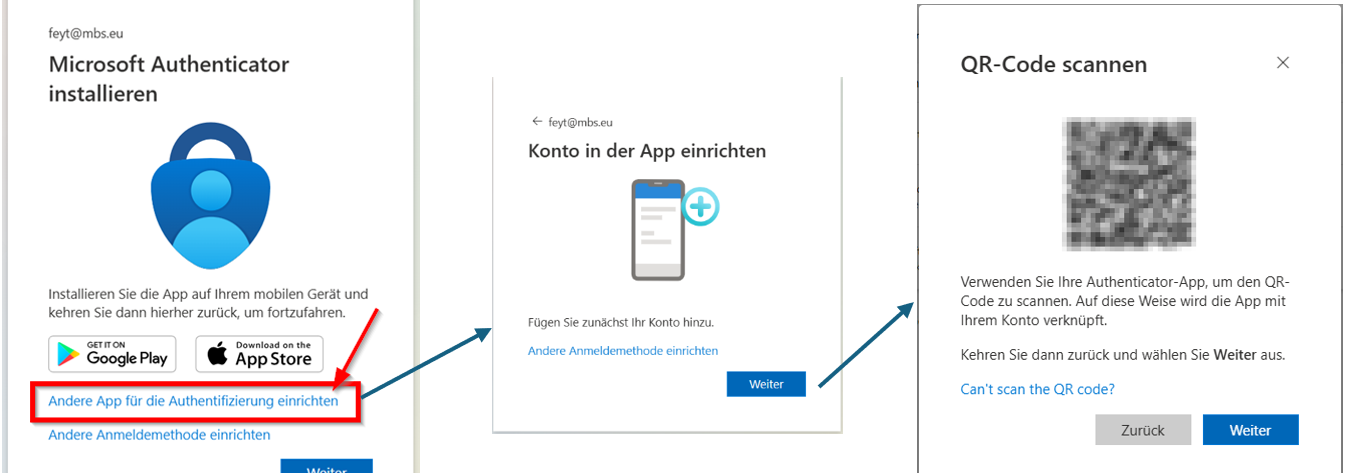
- Select “Set up another app for authentication.”

Only for smartphones
- Tap “Add” in the Authenticator app and scan the QR code
- “Next”
Only for laptops
- Select “Can't scan the QR code?”

- Click “Copy key” and paste it into the app.
- “Next.”
Both
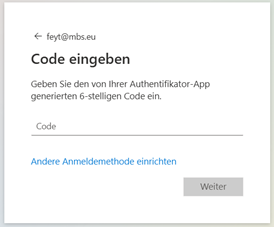
- A new account with a six-digit code will be displayed in the app. Type in the code.
- Close the confirmation page.
Attachments (7)
- 1_Sicherheitsinformationen.png (47.2 KB ) - added by 9 months ago.
- 2_Auswahl.png (48.1 KB ) - added by 9 months ago.
- 3_ms_authenticator_strecke.png (118.3 KB ) - added by 9 months ago.
- 4_ms_authenticator_confirm.png (7.9 KB ) - added by 9 months ago.
- 5_anderer_authenticator_strecke.png (147.0 KB ) - added by 9 months ago.
- 6_Cant_scan_qr.png (116.1 KB ) - added by 9 months ago.
- 7_anderer_authenticator_confirm.png (15.8 KB ) - added by 9 months ago.
Download all attachments as: .zip
Note:
See TracWiki
for help on using the wiki.