| Version 6 (modified by , 9 months ago) ( diff ) |
|---|
KeePassXC (deutsch)
KeePassXC ist ein lokaler Passwort-Manager mit Browser-Integration und Fähigkeit Einmal-Passwörter (TOTP) zu berechnen. Das Programm speichert Accounts und Passwörter sicher in einer passwortgeschützten Datei. Die Datei an sich bedarf keines besonderen Schutzes und kann in der Cloud abgelegt werden bzw. einfach von Rechner zu Rechner kopiert werden. Es können mehrere Dateien erstellt werden, um auch Passwörter und Links für Teams zu speichern. KeePassXC ist Open-Source, kostenlos und plattformübergreifend (Windows, macOS, Linux). Für Android gibt es das Parallelprojekt KeePassDX.
Erstmalige Benutzung
Hinweis: Auf MBS-Laptops die Abfrage nach automatischen Updates immer mit „Nein“ beantworten.

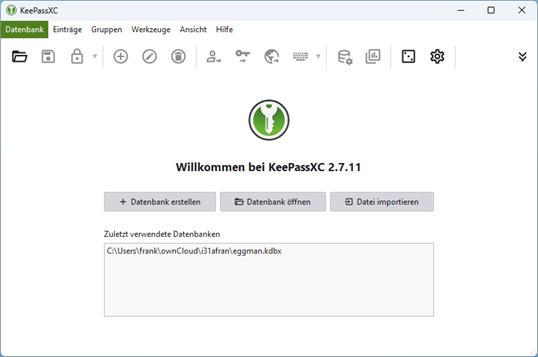
Bei der ersten Benutzung muss eine Datenbank angelegt werden. Es können die Standard-Optionen übernommen werden. Die Sicherheit, der in der Datei gespeicherten Passwörter, hängt direkt mit der Komplexität eures Passworts ab. Lasst euch also bitte was Gutes einfallen! Dafür müsst ihr euch aber kein weiteres Passwort mehr merken. In den Standardeinstellungen von KeyPassXC sind viele Funktionen nicht aktiv. Einige müssen zuerst aktiviert werden:
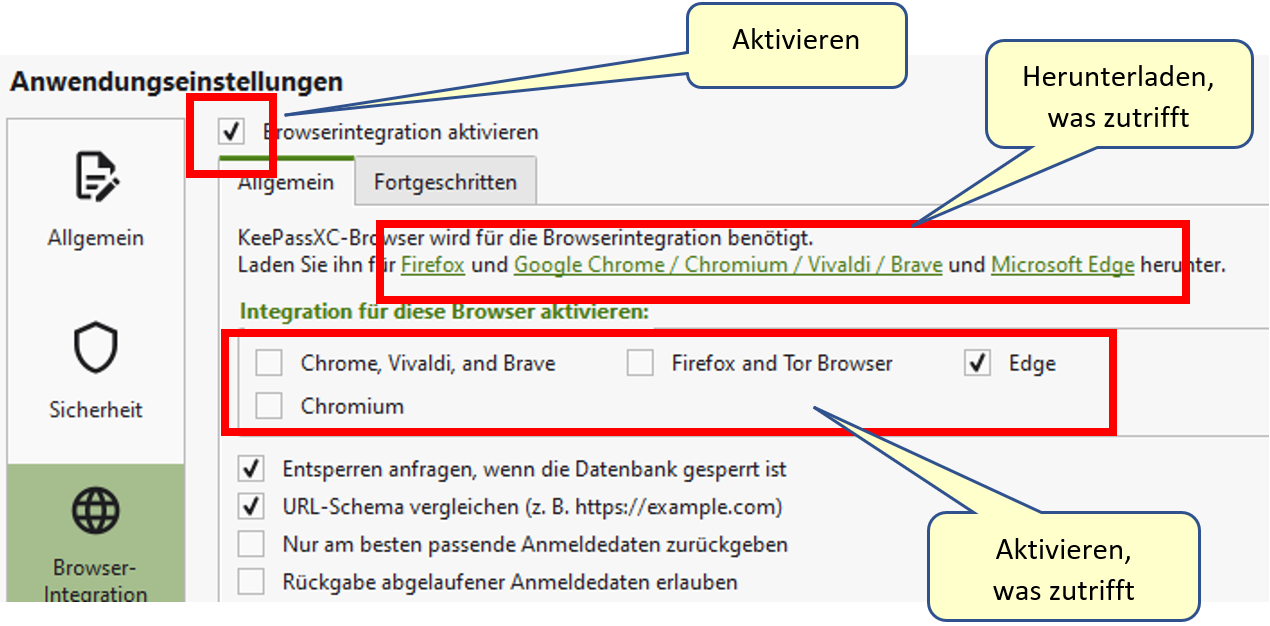
- Werkzeuge -> Einstellungen -> Browser-Integration
- Browserintegration aktivieren: Aktivieren
- Browser-Erweiterungen installieren
- Integration für einzelne Browser aktivieren (führt dazu, dass Anmeldefelder in Webseiten automatisch ausgefüllt werden).

-> „OK“
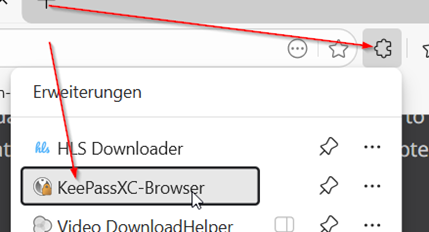
Im Browser:

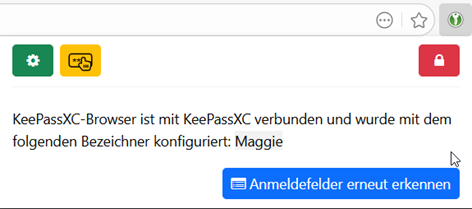
Leider ist der Ablauf nun nicht immer klar. Klicke „Verbinden“, bzw. „Wieder verbinden“. Dann wird auch mal ein Name für die Verbindung verlangt (beliebiger Name ist ok). Am Ende ist das Plugin und KeePassXC verbunden.

Das Anwendungsfenster
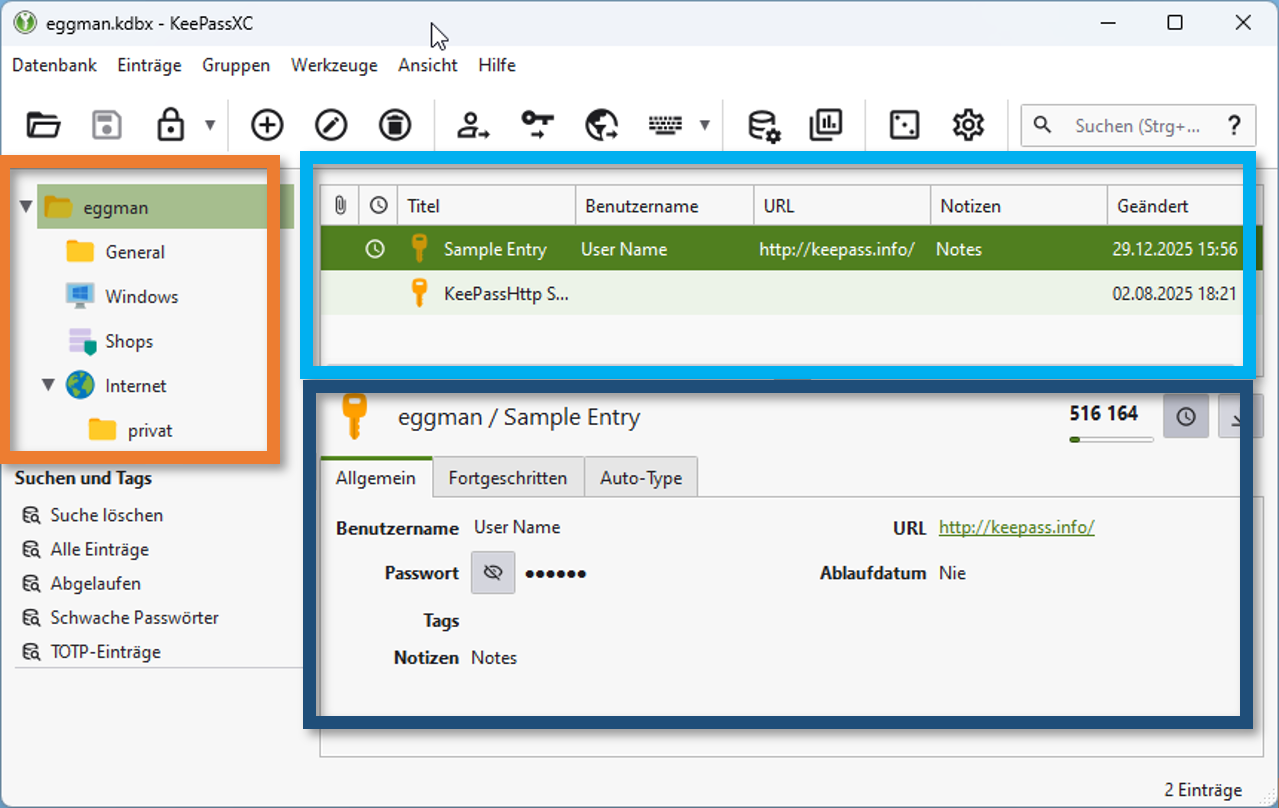
Das Anwendungsfenster besteht aus mehreren Teilen:

- Oben die Menü- und Icon-Leiste
- Rechts oben (hellblau hervorgehoben): Liste der „Einträge“. Jeder Eintrag steht für einen Account/Passwort. Wobei ein Passwort nicht verpflichtend ist. Gerne kann in einem Eintrag auch nur eine URL oder eine Notiz hinterlegt werden.
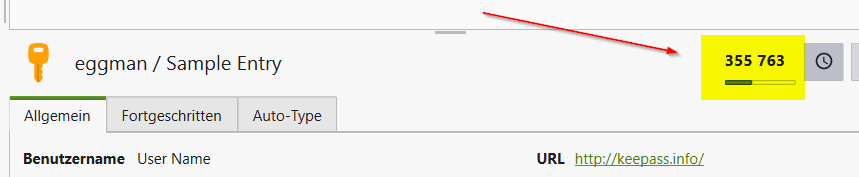
- Rechts unten (dunkelblau hervorgehoben): die wichtigsten Informationen des gewählten Eintrags. Falls für den Eintrag ein Einmal-Password (TOTP) hinterlegt ist, wird dies hier ebenfalls angezeigt (sechsstelliger Code rechts oben)
- Links oben (orange hervorgehoben): Die Einträge können thematisch in Ordnern (hier „Gruppen“ genannt) strukturiert werden. Es werden auch immer nur die Einträge der gewählten Gruppe angezeigt.
Eintrag anlegen
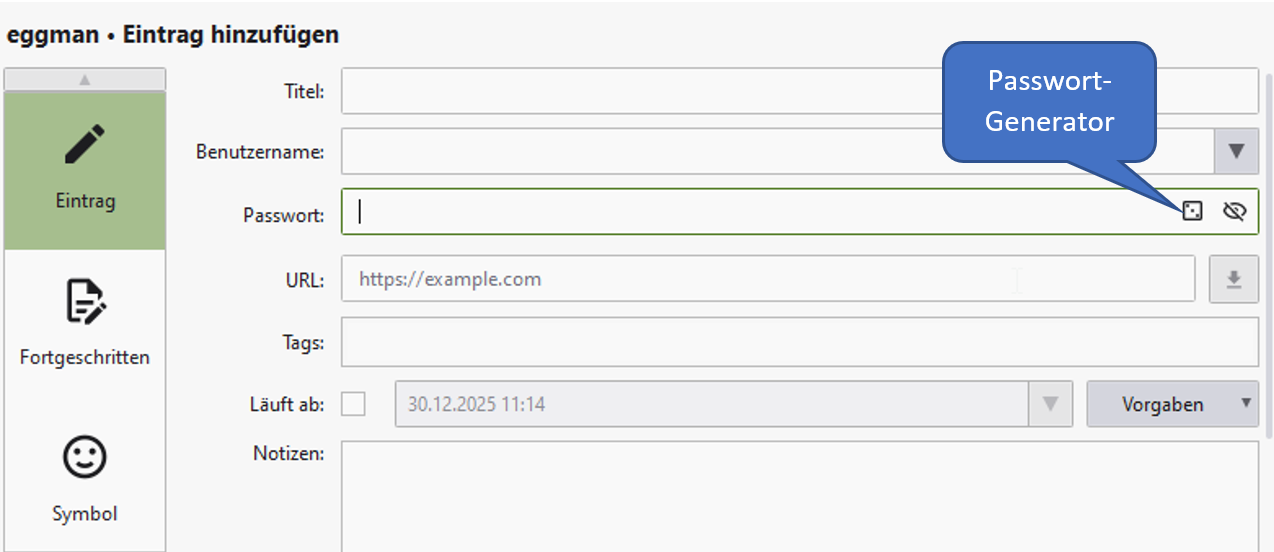
Einträge werden in Gruppen zusammengefasst. Legt euch also erst eine entsprechende Gruppenstruktur an (Rechte Maustaste auf ein Gruppe -> „Neue Gruppe“); dann über das +-Symbol in der Icon-Leiste einen neuen Eintrag.

Sehr hilfreich finde ich den Passwort-Generator, der ein zufälliges, starke Passwort erzeugt. Wenn ihr euch irgendwo neu registriert, legt immer zuerst den Eintrag in KeePassXC an und nutzt diese Information dann für die Registrierung. Wichtig ist, dass ihr auch die URL eingebt, nur dann funktioniert die Browser-Integration, also das automatische Ausfüllen von Anmeldefeldern in Webseiten.
TOTP zu Eintrag hinzufügen
Zu einem Eintrag kann auch in Time-base One-time password (TOTP) hinterlegt werden. Die Tatsache, dass nun Passwort und TOTP in einem Programm gespeichert werden, schwächt die Idee einer Zwei-Faktor-Authentifizierung etwas, ist aber nach wie vor gültig, da man ja die Passwortdatenbank (als Datei) und das Passwort haben muss.

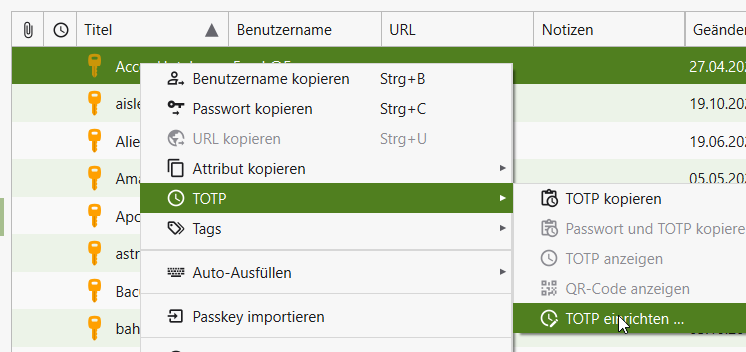
Zuerst wird der Eintrag, zu dem ein TOTP hinzugefügt werden soll, ausgewählt, und dann
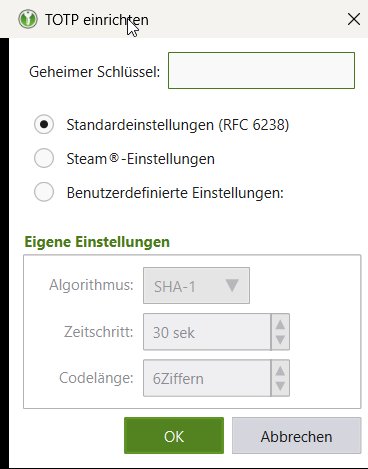
-> Rechte Maustaste -> TOTP -> TOTP einrichten
KeePassXC (english)
KeePassXC is a local password manager with browser integration and the ability to calculate one-time passwords (TOTP). The program stores accounts and passwords securely in a password-protected file. The file itself does not require any special protection and can be stored in the cloud or easily copied from computer to computer. Multiple files can be created to store passwords and links for teams. KeePassXC is open source, free, and cross-platform (Windows, macOS, Linux). For Android, there is the parallel project KeePassDX.
First-time use
‘'Note: On MBS laptops, always answer “No” to the prompt for automatic updates.’'
When using it for the first time, you must create a database. You can use the default options. The security of the passwords stored in the file depends directly on the complexity of your password. So please think of something good! But you don't have to remember another password. Many functions are not active in the default settings of KeyPassXC. Some must first be activated:
- Tools -> Settings -> Browser Integration
- Activate browser integration: Activate
- Install browser extensions
- Activate integration for individual browsers (this causes login fields on websites to be filled in automatically).
-> “OK”
In the browser:
Unfortunately, the process is not always clear. Click “Connect” or “Reconnect.” You may be asked to enter a name for the connection (any name is fine). Once complete, the plugin and KeePassXC will be connected.
The application window
The application window consists of several parts:
- At the top: the menu and icon bar
- At the top right (highlighted in light blue): list of “entries.” Each entry represents an account/password. A password is not mandatory. You can also store just a URL or a note in an entry.
- Bottom right (highlighted in dark blue): the most important information about the selected entry. If a one-time password (TOTP) is stored for the entry, this is also displayed here (six-digit code at the top right)
- Top left (highlighted in orange): Entries can be structured thematically in folders (called “groups” here). Only the entries in the selected group are displayed.
Create entry
Entries are grouped together. First, create a suitable group structure (right-click on a group -> “New Group”); then create a new entry using the + symbol in the icon bar.
I really like the password generator, which creates random, strong passwords. When you register somewhere new, always create the entry in KeePassXC first and then use this information for registration. It is important that you also enter the URL, as this is the only way to ensure that browser integration works, i.e., the automatic filling of login fields on websites.
Attachments (9)
- keepassxc_browser1.png (35.7 KB ) - added by 9 months ago.
- keepassxc_browser2.png (29.9 KB ) - added by 9 months ago.
- keepassxc_entry.png (92.8 KB ) - added by 9 months ago.
- keepassxc_gui.png (244.1 KB ) - added by 9 months ago.
- keepassxc_settings.png (279.4 KB ) - added by 9 months ago.
- keepassxc_start.png (35.8 KB ) - added by 9 months ago.
- keepassxc_totp1.png (25.6 KB ) - added by 9 months ago.
- keepassxc_totp2.png (16.2 KB ) - added by 9 months ago.
- keepassxc_totp3.png (13.6 KB ) - added by 9 months ago.
Download all attachments as: .zip